
Progress & Achievements
As you build in SquadOS — creating agents, connecting knowledge bases, publishing channels — your squad earns XP and levels up. It’s a lightweight way to track how much of the platform you’ve put to use and discover what’s still worth exploring.
Progress belongs to the organization (the “squad”), not to each person. The whole team contributes to the same level, and the focus is on rewarding the first time you do each important action — doing something for the first time is worth far more than repeating it.
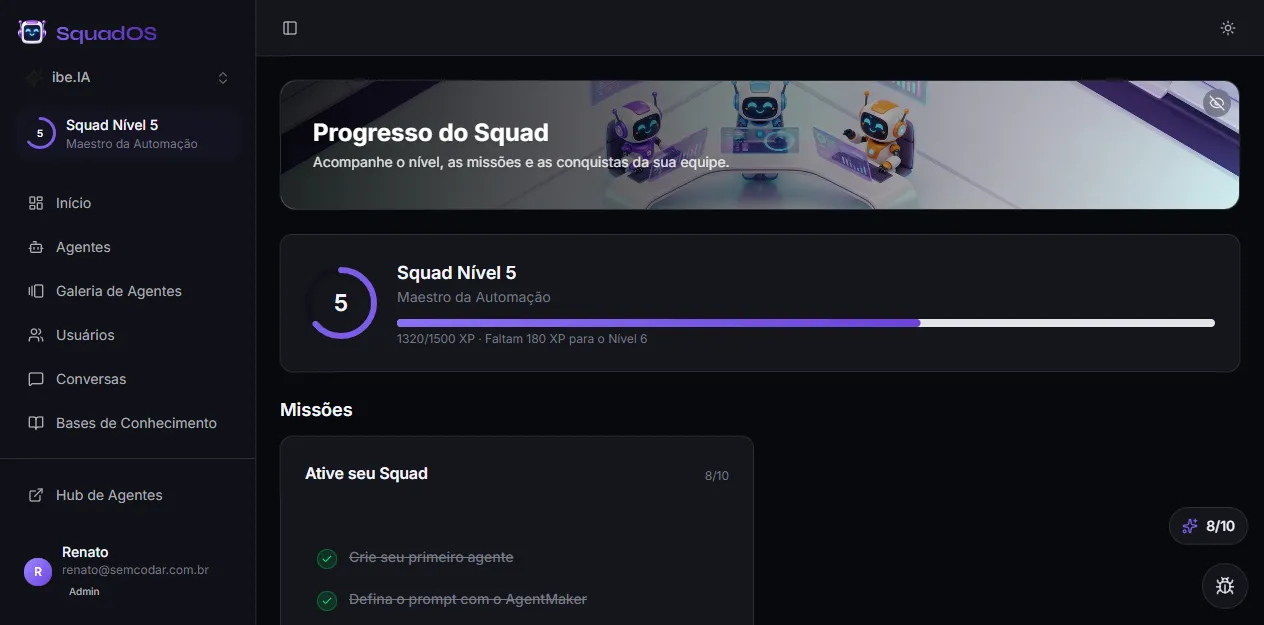
Where to track it
Section titled “Where to track it”There’s always a level indicator at the bottom of the sidebar, on any panel screen. It shows the squad’s current level and its title. Click it to open the Squad Progress page.
Levels
Section titled “Levels”Each level has a title on the “Autonomous Fleet” theme. The first levels come quickly and get more spaced out as the squad matures:
| Level | Title |
|---|---|
| 1 | Operator |
| 2 | Automator |
| 3 | Agent Trainer |
| 4 | Agent Architect |
| 5 | Automation Maestro |
| 6 | Fleet Commander |
| 7 | Autonomous Strategist |
| 8+ | Collective Mind |
The XP bar at the top of the page shows how much is left to the next level (e.g., “1615/2100 XP · 485 XP to Level 7”).
Plan cap and upgrade
Section titled “Plan cap and upgrade”The Free plan goes up to a maximum level — the plan cap. You keep earning XP normally, but the level stays locked at that cap until you upgrade. When the squad hits the cap, the Progress page swaps the XP bar for a notice with an upgrade button.
When you upgrade, the cap is removed and all the XP you piled up while locked converts at once: the squad jumps levels on the spot and unlocks the Graduated Squad achievement. Paid plans have no level cap.
Quests
Section titled “Quests”Quests are guided paths through the first high-value steps. The main quest is Activate your Squad — a 10-step journey that goes from creating your first agent to getting it working on a real channel and upgrading your plan:
- Create your first agent
- Write the prompt with AgentMaker
- Chat with your agent (test in the Hub)
- Create a knowledge base
- Activate the base on the agent and test
- Connect a channel (e.g. Telegram)
- Test via the channel
- See the conversation in Conversations
- Customize the organization’s name and logo
- Upgrade your plan
While the quest isn’t complete, it also appears as a highlighted panel at the top of Home (the Dashboard), always pointing to the next step to take. As you complete each step in the product, it’s marked automatically. The Customize name and logo and Upgrade steps are owner actions — only the organization’s Owner can complete them (for other roles they show an “Owner only” badge).
Achievements
Section titled “Achievements”Achievements are badges you unlock by doing actions for the first time (and a few follow-up milestones). Each unlocked achievement grants a bonus of XP. On the progress page, unlocked ones appear in color with the XP they earned; the ones still locked are grayed out, with a hint of what to do to earn them.
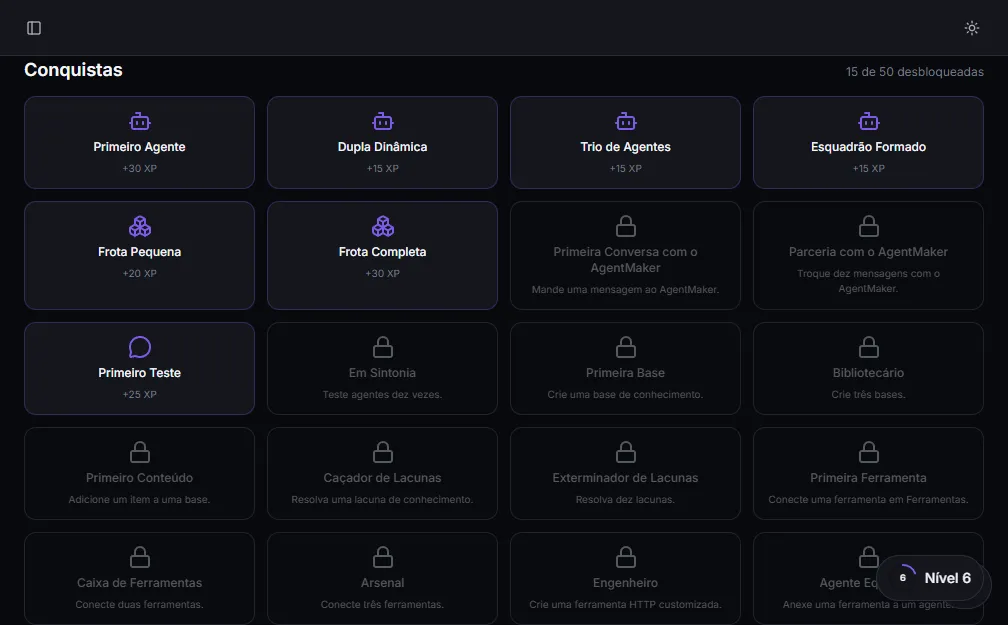
There are dozens of achievements, most of them tied to first times — so they fire a lot in the first days and naturally space out afterward.
How to earn XP
Section titled “How to earn XP”You earn XP by doing the normal work of building and running your agents. The actions that pay off the most (with extra weight on the first time):
- Create an agent and configure its prompt
- Chat with AgentMaker to build prompts
- Test the agent in the Hub (your first conversation with it)
- Create a knowledge base and add items to it
- Resolve knowledge gaps
- Create a custom HTTP tool and attach a tool to an agent
- Activate a guardrail on an agent
- Publish a channel/trigger (public link, widget, Telegram, WhatsApp, Instagram, schedule, follow-up)
- Invite a teammate to the squad
- Customize the platform identity (name and logo)
And there are actions that happen automatically as your agents work:
- The agent executes a tool successfully
- The agent queries the knowledge base and finds something relevant
- The squad receives its first message on a channel (public link, widget, Telegram, WhatsApp, Instagram…)
Celebrations
Section titled “Celebrations”When you unlock an achievement or the squad levels up, a quick notification shows in the corner of the screen (with a touch of confetti on level-up). Nothing intrusive — just a nod to your progress.
Who takes part
Section titled “Who takes part”Progress is aimed at builders — the Collaborator, Admin, and Owner roles. The progress page and the level indicator appear in the admin panel for those roles.