
Official WhatsApp (Cloud API)
Official WhatsApp uses Meta’s Cloud API to send and receive messages. It’s the recommended mode for production: stable, with official SLA, clear limits, and without the disconnection risk that can happen with QR Code solutions.
Prerequisites
Section titled “Prerequisites”Before connecting, you need:
- Meta Business Manager account — go to business.facebook.com. It’s free.
- A WhatsApp Business Account (WABA) created and linked to your Business Manager. If you don’t have one yet, you can create it during the signup flow or in advance at Business Manager.
- A phone number dedicated to WhatsApp Business — see the Phone number section for how to add one.
- The number must not be active in the personal WhatsApp or WhatsApp Business App. A number can only be used in one place at a time.
How to connect
Section titled “How to connect”-
Open Agents → [your agent] → Triggers.
-
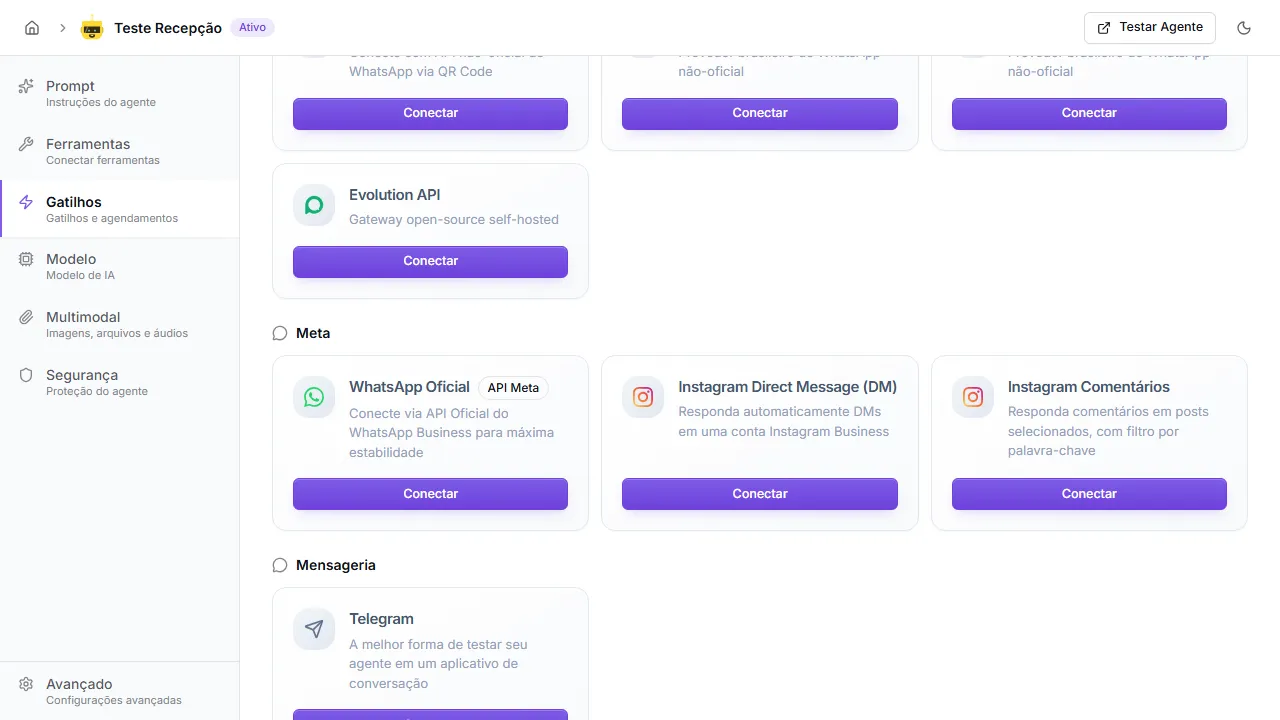
In the Meta section, find the WhatsApp Oficial card (with the API Meta badge) and click Connect.
-
A Meta popup opens — complete all steps of the Embedded Signup flow:
- Sign in with your Facebook Business account.
- Select (or create) the WABA.
- Select the phone number you want to use.
- Confirm the requested permissions until the final button appears.
-
After closing the popup, wait up to 30 seconds while SquadOS registers the number on Cloud API. Keep the tab open.
-
When done, the card shows Connected and your agent starts receiving messages.
Phone number
Section titled “Phone number”If your WABA doesn’t have a number configured yet, you’ll see the error “No phone numbers in the account” when trying to connect.
To add a number:
- Go to WhatsApp Manager and select your WABA.
- Click Add phone number.
- Enter the number, choose how to receive the verification code (SMS or call), and confirm.
- Wait for Meta to approve the display name — this can take a few hours.
- Once the number is active, go back to SquadOS and click Connect again.
Registration
Section titled “Registration”Registration is the final step where SquadOS activates your number on Cloud API. Two common issues at this step:
Number already in use in another app
Section titled “Number already in use in another app”Error: “Failed to register phone number”
The number is still active in personal WhatsApp or the WhatsApp Business App. To fix:
- On the device where the number is active, open WhatsApp and go to Settings → Account → Delete my account — this releases the number for use via Cloud API.
- Alternatively, use a different number that isn’t active in any app.
- After releasing it, go back to SquadOS and try connecting again.
Two-step verification active
Section titled “Two-step verification active”If the number has a two-step verification PIN configured, SquadOS automatically opens a dialog asking you to provide the PIN. See the Two-step verification (2FA) section below.
Two-step verification (2FA)
Section titled “Two-step verification (2FA)”If the number you’re connecting already has two-step verification enabled — the 6-digit PIN you configured in WhatsApp — SquadOS can’t finalize the registration automatically and opens a dialog asking what to do.
Why this happens: when migrating the number to Cloud API, Meta requires the current PIN as proof of ownership. Without it, the registration fails with the error (#133005) Two step verification PIN Mismatch.
You have three paths, from fastest to last resort:
1. Enter the current PIN (fastest)
Section titled “1. Enter the current PIN (fastest)”If you remember the 6-digit PIN, type it in the dialog field and click Register with this PIN. SquadOS uses that PIN to finish the registration. No other steps needed.
2. Reset the PIN in WhatsApp Manager (recommended if you forgot)
Section titled “2. Reset the PIN in WhatsApp Manager (recommended if you forgot)”If you don’t remember the PIN, reset it in WhatsApp Manager:
- Open Manager and select your number.
- Go to the Two-step verification tab.
- Click Enter new PIN and set a new 6-digit code.
- Return to SquadOS and enter the new PIN in the dialog.
This path doesn’t require email confirmation and doesn’t disable any security layer on your number. It’s the official path Meta recommends when you’ve lost the PIN.
3. Disable two-step verification (last resort)
Section titled “3. Disable two-step verification (last resort)”Only use this if neither path above is possible. In the same WhatsApp Manager, under Two-step verification, click Turn off two-step verification.
- Meta sends a confirmation email to the address associated with the business portfolio.
- You need to click the link in the email to complete the removal.
- Afterwards, return to SquadOS and click I disabled it, retry in the dialog.
Once the number is connected to SquadOS, you can re-enable 2FA again in WhatsApp Manager.
Troubleshooting
Section titled “Troubleshooting”| Error shown | Likely cause | What to do |
|---|---|---|
| No WhatsApp Business account found | The Meta popup was closed before completing all steps, or you don’t have a WABA; also happens when reconnecting a previously used WABA without completing the flow again | Click Connect again and complete all popup steps. If you don’t have a WABA, create one in Business Manager first |
| More than one WhatsApp Business account found | Your Meta account has multiple WABAs and SquadOS cannot determine which one to use | Redo the connection and select a specific phone number in the Meta popup. To prevent recurrence, remove duplicate WABAs in Meta Business Manager |
| Authorization code expired | The Meta code expires within minutes | Click Connect again and complete the flow quickly |
| Authorization code already used | A previous attempt already consumed the code | Click Connect to generate a new code |
| Failed to authenticate with Meta | Generic authentication error with Meta | Try again. If it persists, contact support |
| No phone numbers in the account | Your WABA has no configured numbers | Add a number in WhatsApp Manager and try again — see Phone number |
| Failed to activate webhook on Meta | Insufficient permissions on the WABA | Check that your account has the required permissions in Business Manager. If the problem persists, contact support |
| Failed to register phone number | The number is active in another WhatsApp app | Deactivate WhatsApp on the device using that number and try again — see Registration |
| Number connected with restrictions | WABA hasn’t been verified by Meta yet | The number works but may have limits. Complete business verification in Business Manager |