
Follow-up
The Follow-up trigger builds a re-engagement cadence: when a lead stops replying, the agent sends follow-up messages at the times you define, until the lead speaks again or the cadence runs out of attempts.
Unlike Scheduling, which runs the agent from scratch with no inbound message, Follow-up acts on existing conversations — it nudges whoever went silent after the agent’s last message.
The key benefit: as soon as the lead replies to any follow-up, the cadence stops on its own for that conversation. The agent goes back to handling the conversation normally and the lead gets no more nudges.
Before you start
Section titled “Before you start”Follow-up has no channel of its own — it delivers messages through an external channel you’ve already connected. Make sure:
- the agent has at least one external channel connected: Telegram, WhatsApp (QR, Official, or a provider like Z-API, Uazapi, Evolution), Instagram Direct, or API;
- or there’s another agent in the organization that transfers leads here and has one of those channels connected.
With no eligible channel, the Add Follow-up button stays disabled.
How it works
Section titled “How it works”At each time you configure, the system looks for the agent’s conversations (on the chosen channels) that meet all of these criteria, and sends the next message in the cadence:
- the last message was from the agent — i.e. the lead hasn’t replied yet;
- the minimum inactivity time has passed (default 2h);
- the conversation hasn’t hit the max number of attempts;
- the lead’s last message is still within the validity window (default 24h);
- the conversation isn’t closed.
When the lead replies, the cadence stops. If the lead reacts to any attempt, that conversation leaves the cadence and won’t receive the following attempts — even if the agent answers back automatically.
Creating a follow-up
Section titled “Creating a follow-up”- Open the agent in the admin panel and go to Triggers.
- On the Follow-up row, click + Add Follow-up.
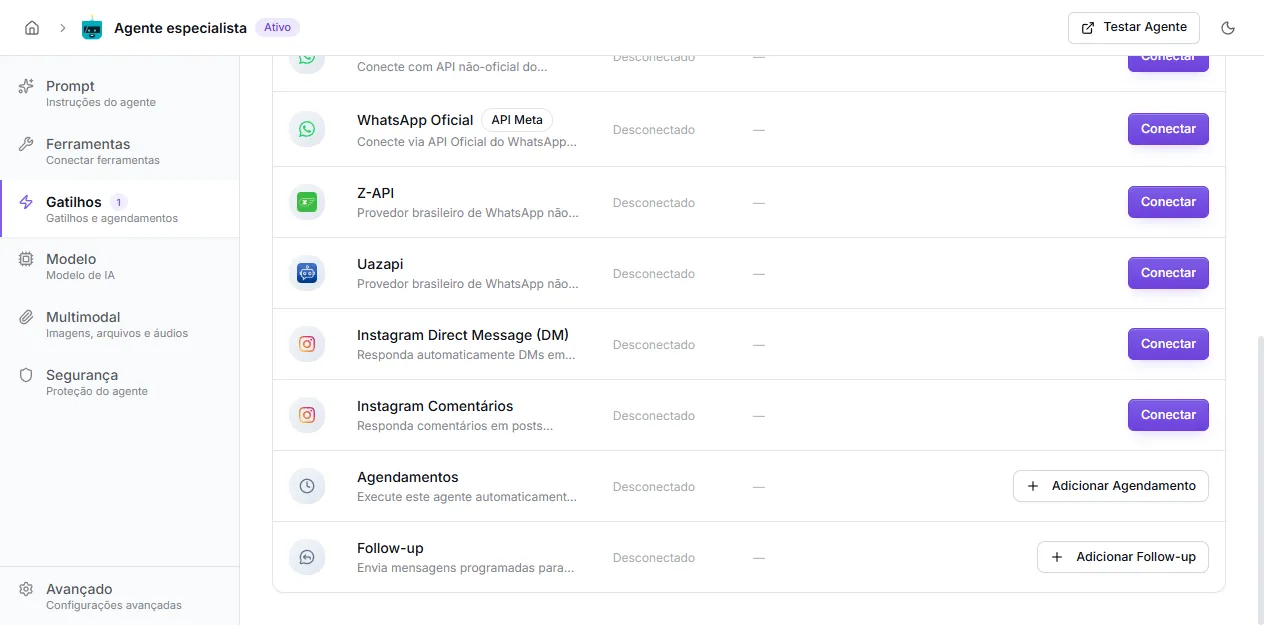
The form is a 4-step wizard: Channels → When → Who receives → Messages.
Step 1 — Channels (where to send)
Section titled “Step 1 — Channels (where to send)”Choose which channel(s) the follow-ups go out on. The list shows this agent’s channels plus those of agents that transfer leads here. Max 1 channel per type (e.g. you can’t pick two different WhatsApp channels).
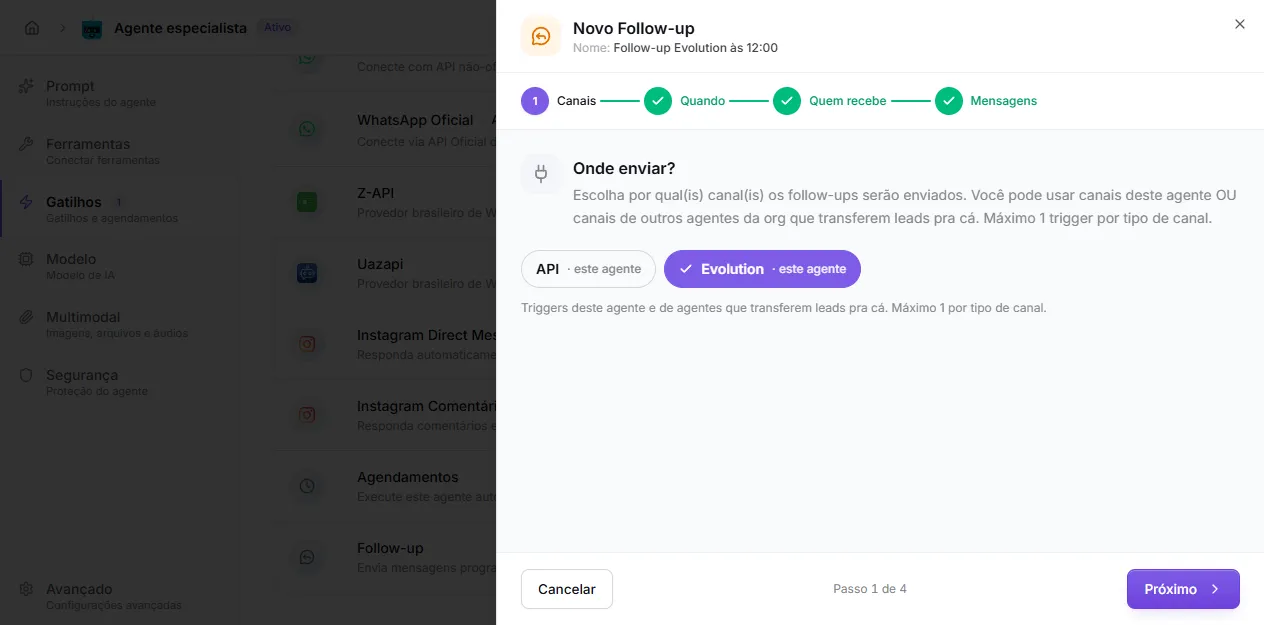
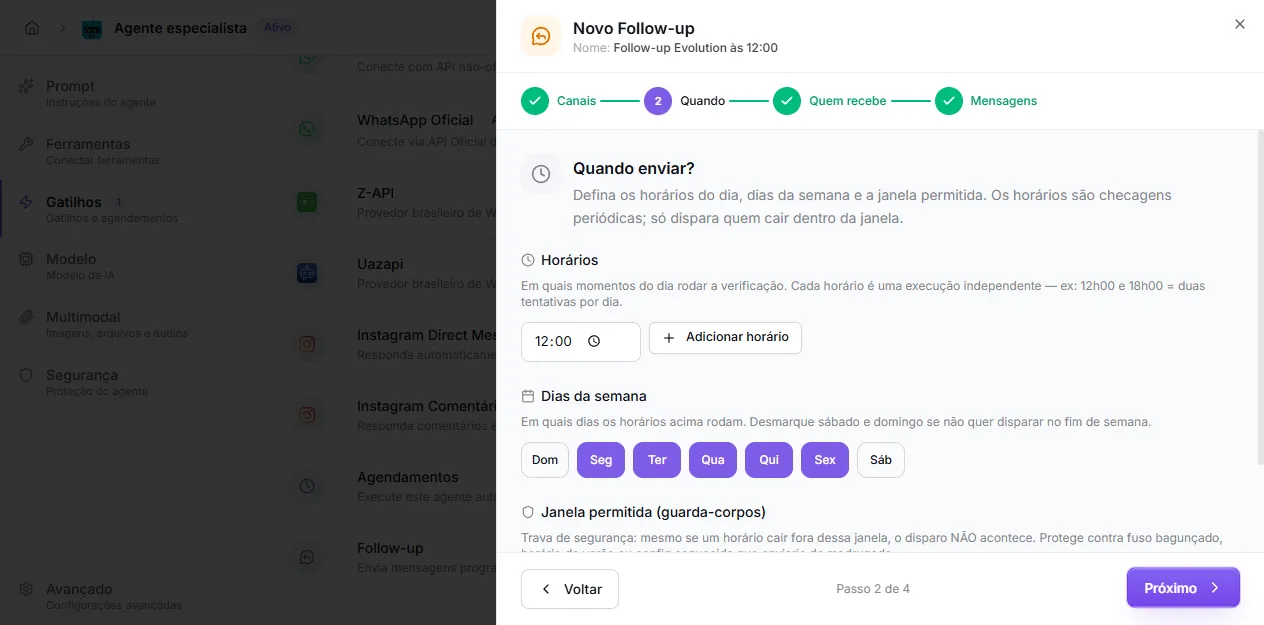
Step 2 — When to send
Section titled “Step 2 — When to send”Define times of day, days of week, and the allowed window:
- Times: each time is an independent check. E.g. 12:00 and 18:00 = two send opportunities per day.
- Days of week: uncheck Saturday and Sunday if you don’t want to nudge on weekends.
- Allowed window (safety net): a safety guard. Even if a time falls outside this range, the dispatch won’t happen — it protects against bad timezones, DST shifts, or a forgotten config that would fire in the middle of the night.
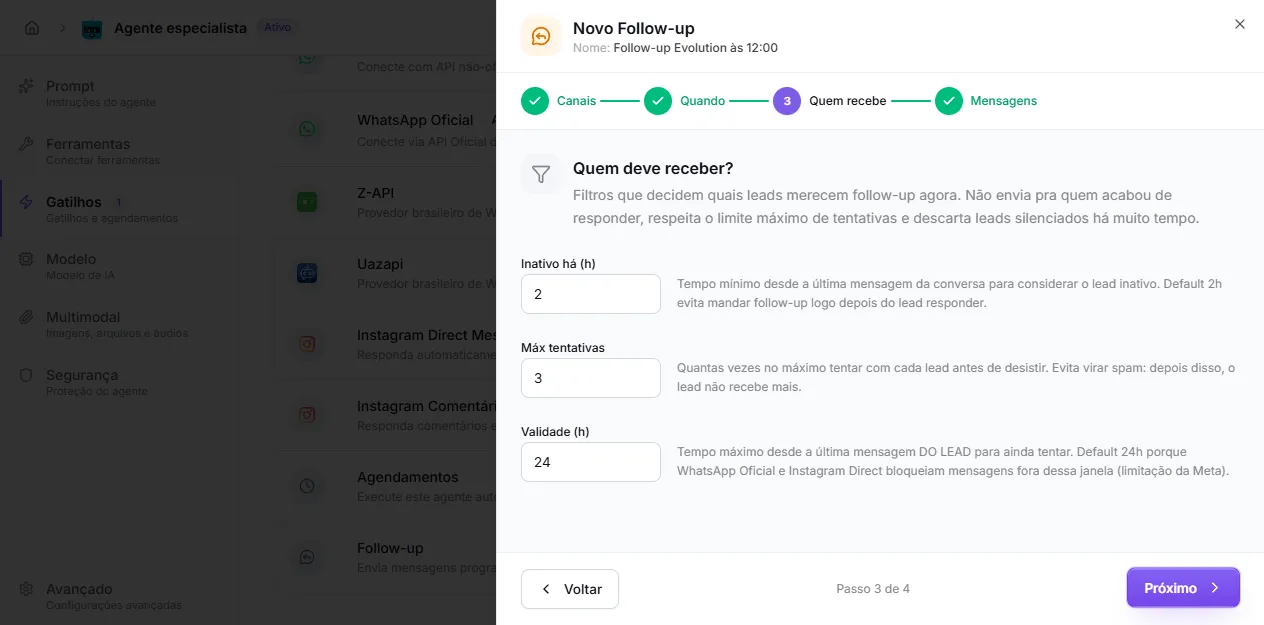
Step 3 — Who receives (criteria)
Section titled “Step 3 — Who receives (criteria)”The filters that decide which leads deserve a follow-up at run time:
- Inactive for (h): minimum time since the conversation’s last message before treating the lead as inactive. The 2h default avoids firing right after the lead replies.
- Max attempts: the cap on how many times each lead gets nudged before you give up. Prevents spam.
- Validity (h): the maximum time since the lead’s last message that we still try. The 24h default exists because WhatsApp Official and Instagram Direct block free-form messages outside that window (Meta restriction).
Step 4 — Messages
Section titled “Step 4 — Messages”One message per attempt, in plain text:
- the 1st is usually more open (“still there?”);
- the 2nd reminds the lead you’re around;
- the last should be a polite closing, letting them know you won’t bother them again.
If you write fewer messages than the max number of attempts, the last one repeats for the remaining attempts. The preview under each field shows how the message will go out.
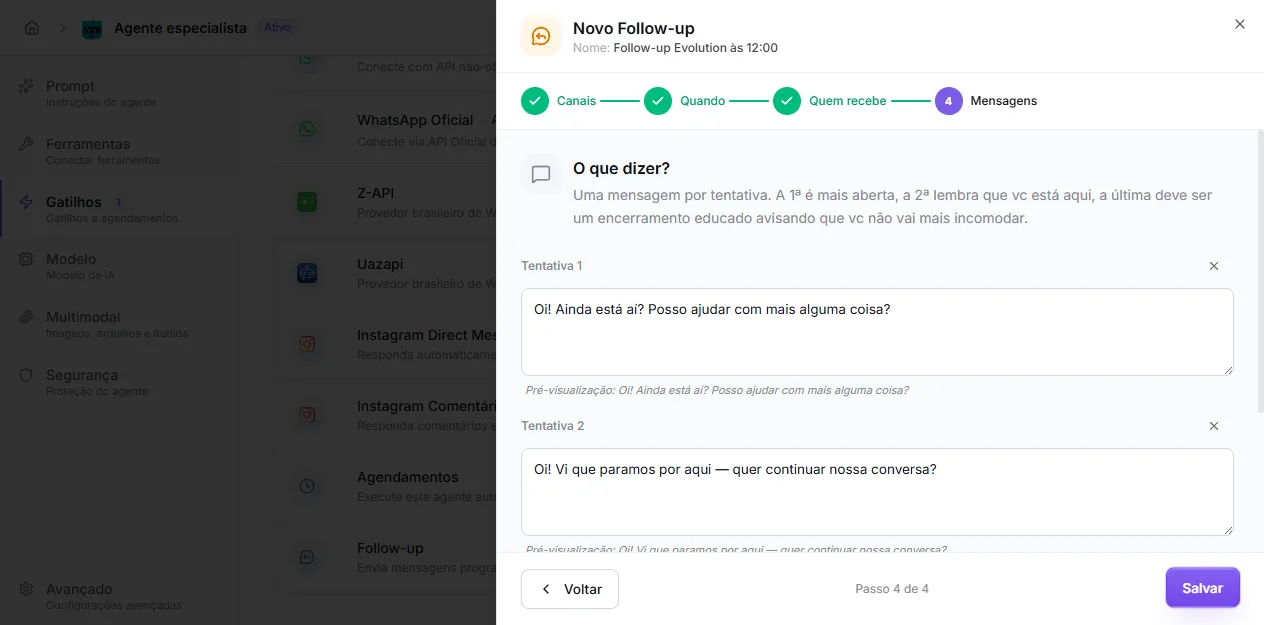
Click Save on the last step. The follow-up gets an automatic internal name (from the channel and times) and starts running.
Tracking sends
Section titled “Tracking sends”Every attempt — sent, skipped, or failed — is recorded on the Executions page, with the reason for each case (e.g. lead replied, outside the Meta window, channel disconnected). Use that page to understand why a conversation did — or didn’t — get a follow-up.
Limits and notes
Section titled “Limits and notes”- No credit cost: the follow-up message is pre-written text and doesn’t go through the AI, so the send itself doesn’t spend credits. (If the lead replies, the agent’s answer is a normal conversation — and that does spend credits.)
- Multiple follow-ups per agent: you can have more than one cadence active on the same agent (e.g. one per channel).
- WhatsApp Official and Instagram Direct: respect Meta’s 24h window. Outside it, the follow-up is skipped (logged in Executions), not sent.
- Closed conversations are left out of the cadence.
Common issues
Section titled “Common issues”- “Add Follow-up” button disabled: the agent has no eligible external channel. Connect Telegram/WhatsApp/Instagram/API on this agent, or point a
transfer_to_agentfrom another agent here. - Lead got a follow-up even after replying: check the Executions page for the timing of the lead’s reply versus the last send. The cadence only stops for replies that arrive after the previous follow-up.
- Follow-up didn’t go out on time: check whether the time fell inside the allowed window and the selected days of week, and whether the delivery channel is still connected.