
Transfer Conversation
Transfer Conversation is the native tool that takes a conversation out of the current agent’s hands and hands it to another agent or to a person on your team.
The core idea is a division of labor: the agent picks the reason, SquadOS decides the destination. You don’t teach the agent who’s on call at 10pm on a Saturday — you describe the reasons a conversation should leave it, and configure, per reason, who handles it at each time of day.
The context is the unit of configuration
Section titled “The context is the unit of configuration”Each context is one reason to transfer. A sales agent might have two:
- “the customer wants to negotiate price, a discount, or payment terms”;
- “the customer is unhappy or asked to speak to a person”.
On the agent’s Tools tab, add Transfer Conversation and click Add context:
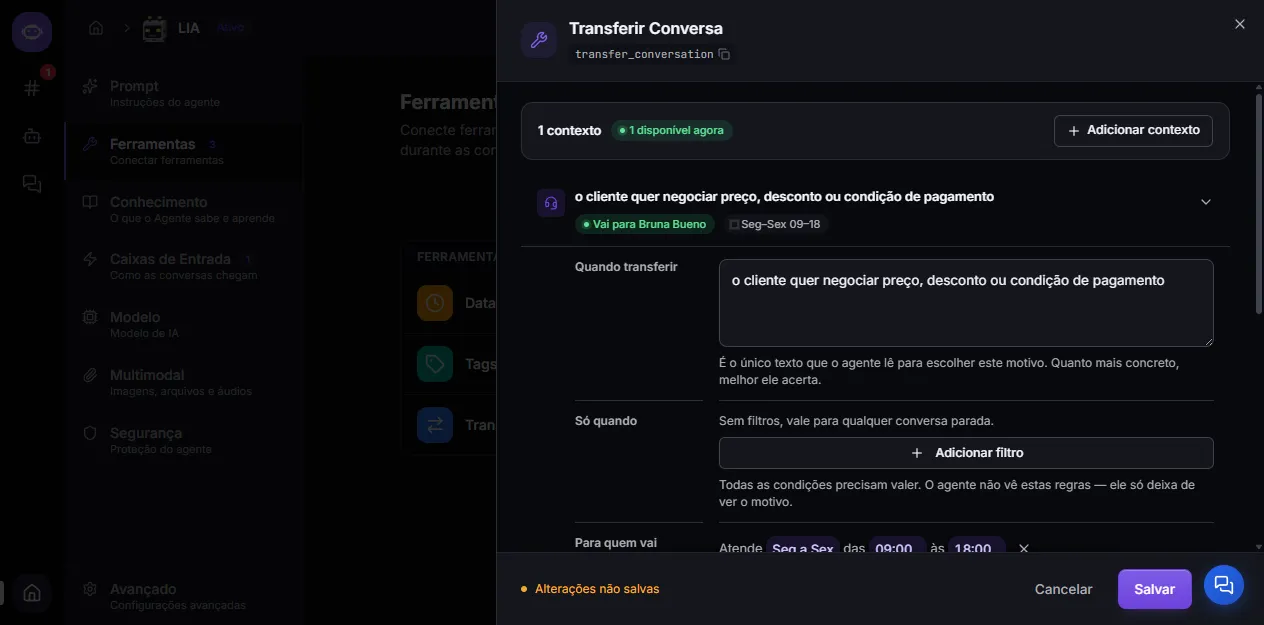
When to transfer
Section titled “When to transfer”The description of the reason. It’s the only text the agent reads to pick this context — the more concrete it is, the more often it gets it right. Write it from the conversation’s point of view (“the customer asks about invoices”), not from your operation’s (“send to finance”).
Only when (optional)
Section titled “Only when (optional)”Conditions that must hold for the context to exist at all in that conversation. You can filter by:
- conversation tag
- contact tag
- channel
- inbox
All conditions must hold at once. The agent never sees these rules — the reason simply stops being offered when they don’t match.
Where it goes
Section titled “Where it goes”This is where you build the time ranges and each one’s destination:
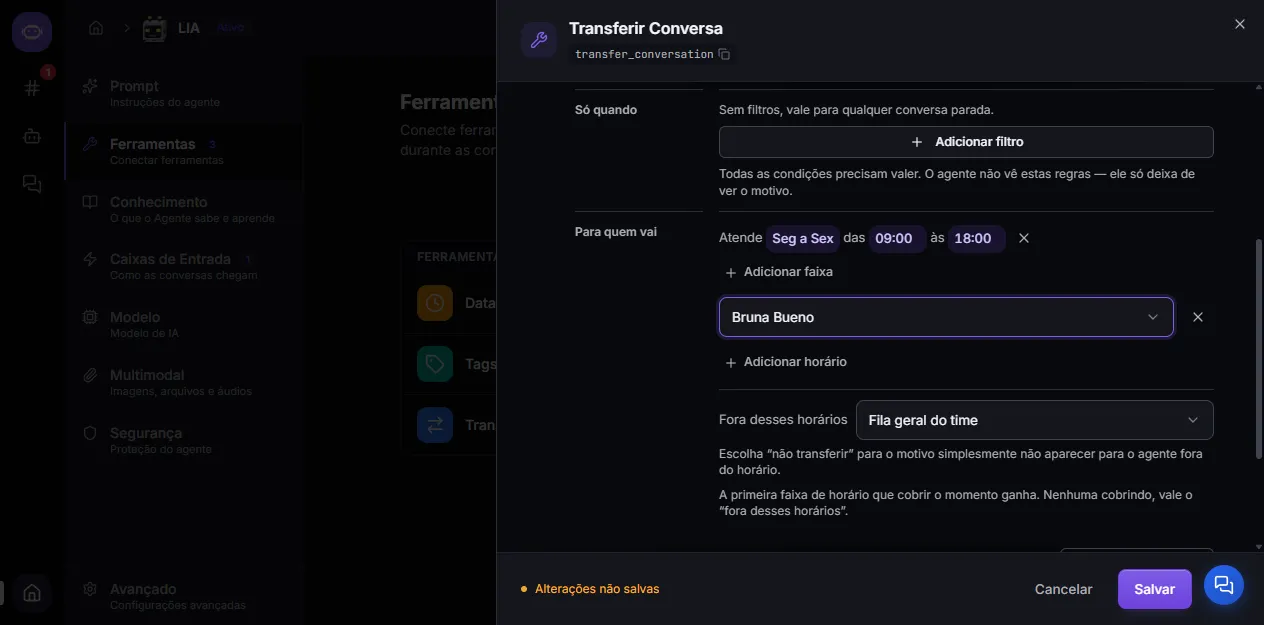
- Time range — days of the week and an hour interval, in the organization’s time zone (adjustable under Settings → General).
- Range destination — the team’s general queue, a specific person, or another agent.
- Outside these hours — the destination that applies when no range covers the moment.
Two rules are worth memorizing:
- The first range that covers the moment wins. If two ranges overlap, the one on top decides.
- Choosing “don’t transfer” under “outside these hours” makes the reason disappear. Outside the window the agent doesn’t even see that context — instead of transferring into an empty queue at 3am, it keeps handling the conversation.
A context with no ranges at all is perfectly valid: it always uses the “outside these hours” destination.
What the agent sees
Section titled “What the agent sees”Only the list of reasons available at that instant, with the description you wrote. A filtered or out-of-hours context simply isn’t there — the agent can’t pick a destination that doesn’t exist, and doesn’t need to know why.
The tool header shows the count: 2 contexts · 1 available now.
What happens in the conversation
Section titled “What happens in the conversation”- Agent destination — the destination agent takes over and starts replying, with its own prompt and its own tools. It keeps the ability to escalate to a human later, if it has the tool configured.
- Person or queue destination — the AI is switched off for that conversation and it enters the human support queue, visible under Conversations. When you pick a person, the conversation arrives already assigned; in the general queue, any operator can take it.
Messages stay in the same conversation, but the destination agent receives a recent window, not a guarantee of complete history. On the common path, that window follows the source agent’s limit and does not carry the summary of older messages; on the streaming path, transfer fetches ten messages. Put essential facts in the reason, in Notes, or in another durable record, and test long conversations too.
The destination agent replies immediately with its own prompt, organization context, model, and tools. On this first turn it may still escalate to a person, but it cannot transfer to another agent; agent-to-agent transfer becomes available again with the customer’s next message.
In Hub Rooms, behavior differs: conversation ownership does not change, a child run is created in the same thread, and the destination must participate in the Room. A confirmed defect in unified-configuration validation can reject a legitimate destination; validate Rooms separately before relying on this path.
Under Advanced, the optional webhook appears when a human destination exists. It is shared by the agent, must use HTTPS, and is called on handoff to a person or queue — not on transfer to another agent.
Replacing the older tools
Section titled “Replacing the older tools”Transfer Conversation replaces two tools that used to be separate — Human Handoff and Transfer to agent. They no longer appear in the list of tools you can add.
Agents that already had them keep working with no action from you: the old configuration is read and converted into contexts automatically. When you open the tool on the new screen you see that old configuration already in context form, and it’s saved in that form the first time you hit save.
Best practices
Section titled “Best practices”- Ask the AgentMaker. Describe the routing in the AgentMaker tab and confirm the reasons on the card; see Set the transfer reasons.
- One reason per context. A context describing three different situations leaves the agent guessing.
- Describe the trigger, not the consequence. “the customer asks for a duplicate invoice” works better than “send to collections”.
- Prefer “don’t transfer” over an empty queue. If nobody staffs the overnight shift, it’s better for the agent to keep trying than to leave the conversation stranded.
- Test it in the agent’s test panel after saving: ask for exactly what the reason describes and confirm the destination, first reply, received context, and usage. The test uses the real runtime and may persist messages, consume credits, and execute external effects.
- Inspect the source agent. The destination’s Agents that transfer here list may still ignore unified-tool configurations and appear empty.
- Do not confuse this with manual transfer. The inbox agent restriction controls transfers made by people; this tool’s destinations are configured here.